Apple Speaker Cleaner – Clear Dust & Water from iPhone Speakers
Your iPhone speaker sounds muffled on calls. Music has lost its bass. The bottom speaker sounds distant even at maximum volume. These are the exact symptoms of a blocked iPhone speaker grille — and they are almost never permanent hardware damage. Apple speaker cleaner uses the same acoustic ejection principle built into Apple Watch Water Lock, applied directly to your iPhone speaker through Safari. No app download. No disassembly. No repair shop. Press play and hear the difference in 60 seconds.
Clean iPhone Speaker Now — Free, Works in Safari
Apple Speaker CleaneriOS
iPhone · Water Eject · Dust · Ear Speaker
iPhone Speaker Cleaned ✓
Water · dust · debris cleared · Full audio restored
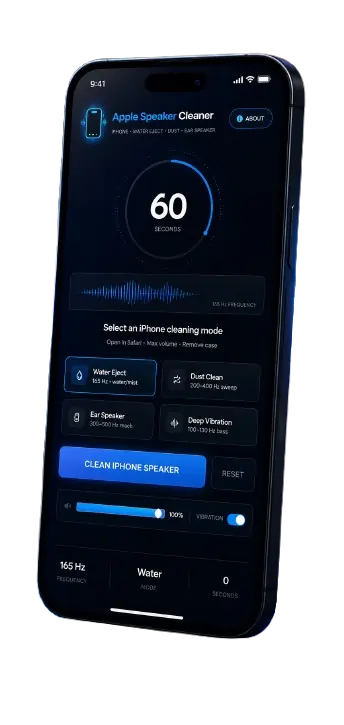
Apple Speaker Cleaner Interface
The Apple speaker cleaner tool runs entirely inside Safari on your iPhone — no installation, no App Store visit, no permissions beyond standard audio playback. It uses the Web Audio API built into iOS Safari to generate calibrated cleaning frequencies directly through your iPhone speaker hardware.
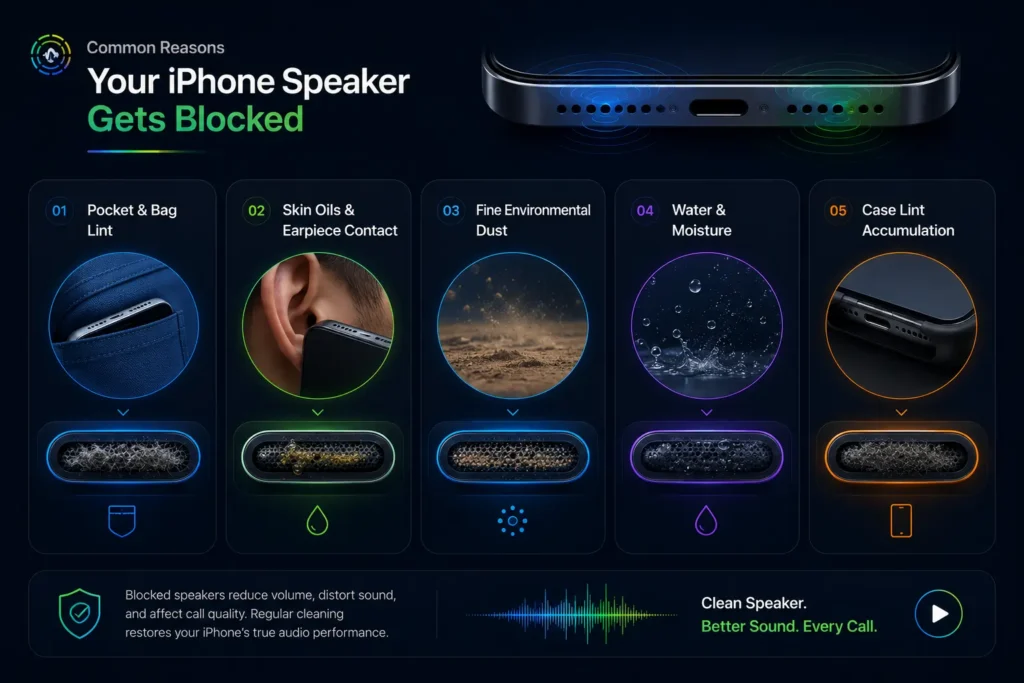
The tool covers four iPhone speaker cleaning modes: Water Eject at 165Hz for moisture removal, Dust Clean at 200–400Hz for debris, Ear Speaker mode at 300–500Hz for the earpiece grille, and Deep Vibration at 100–130Hz for packed internal debris. Each mode targets a specific type of blockage with the frequency range most effective for that debris type.
Works on every iPhone model — iPhone 7 through iPhone 16 series. The acoustic cleaning principle applies identically regardless of iOS version, chip generation, or speaker hardware revision.
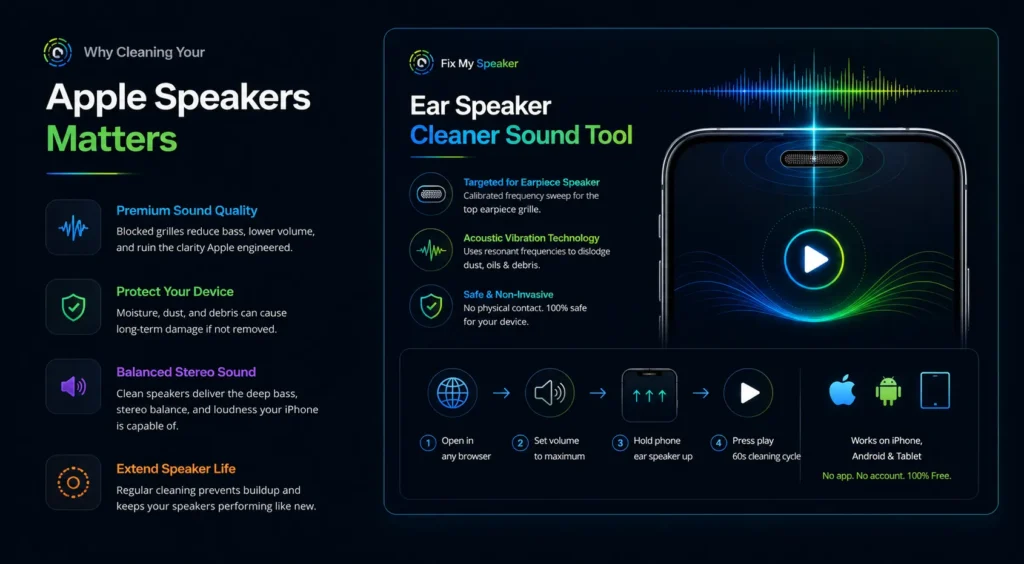
Why Cleaning Your Apple Speakers Matters
iPhone speakers are among the most compact high-performance speaker systems in any consumer device. Apple engineers significant acoustic quality into a tiny space — and that quality degrades rapidly when the speaker grille becomes blocked.
The iPhone has two speaker outputs: the bottom speaker grille used for music, video, and speakerphone, and the earpiece speaker at the top used during standard phone calls. Both grilles have tightly woven mesh that traps fine debris efficiently. The bottom grille faces pockets and bags — the highest-density lint environments a phone encounters.
The earpiece grille presses against your face on every call, accumulating skin oils, fine debris, and moisture continuously.
Apple designed the iPhone speaker system to produce balanced stereo output across both grilles. When one grille is blocked, the stereo balance shifts, bass response drops, and maximum volume output falls below the device’s actual capability.
Most iPhone users attribute this to the phone aging or iOS updates reducing performance. In the vast majority of cases, the audio decline is entirely physical — caused by blocked speaker grilles that a single cleaning session can fully reverse.
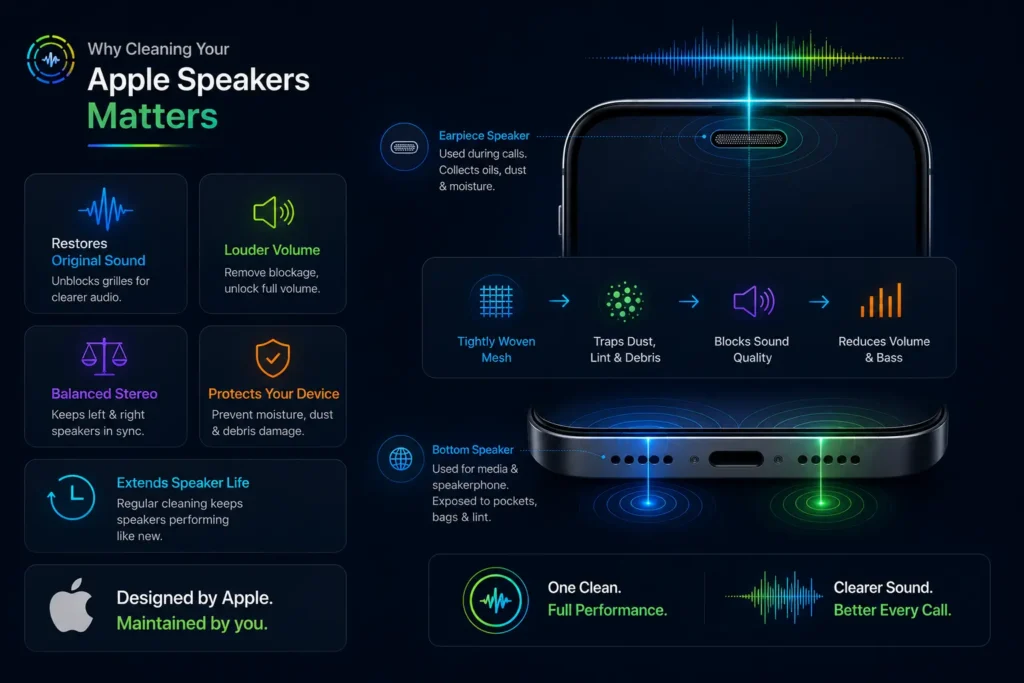
Common Reasons Your iPhone Speaker Gets Blocked
Pocket and bag lint.
Fabric fibres from jeans pockets, jacket pockets, and bag linings are the most common source of iPhone speaker blockage. The tight weave of the iPhone speaker mesh acts like a filter, gradually accumulating fibres with every pocket insertion until the grille is visibly packed.
Skin oils and earpiece contact
The earpiece grille absorbs skin oils from face contact on every phone call. Over months, this creates a layer of organic residue on the mesh that traps dust and fine particles more aggressively than a clean grille surface.
Fine environmental dust
Construction sites, workshops, sandy beaches, and dusty outdoor environments introduce fine particles that pass through the speaker mesh and settle on the diaphragm surface. This type of debris requires the full acoustic cleaning sweep rather than just surface brushing.
Water and moisture
Rain, sweat, bathroom humidity, and accidental submersion all introduce moisture into the iPhone speaker chamber. Even IP-rated iPhones (iPhone 7 and later) can have moisture reduce speaker output — the IP rating means water does not cause immediate damage, not that moisture does not affect audio performance. iPhone water cleaner mode uses 165Hz acoustic ejection to remove this moisture before it causes corrosion.
Case lint accumulation.
Some iPhone cases create a lint trap against the bottom speaker grille. The case edge channels fabric fibres directly into the speaker opening. Removing the case for cleaning and choosing a case with an open speaker design significantly reduces passive lint accumulation.
How Apple Speaker Cleaner Works
Apple Watch uses acoustic ejection — a targeted sound tone that vibrates the speaker membrane at its resonant frequency to expel water. The Apple speaker cleaner tool applies this same principle to iPhone speakers through Safari’s Web Audio API.
Every speaker membrane has a natural resonant frequency — the vibration frequency at which it moves with the greatest amplitude for a given power input. When the cleaning sound plays at or sweeps through the iPhone speaker’s resonant frequency, the diaphragm vibrates with significantly greater force than during normal audio playback.
This amplified vibration creates acoustic pressure strong enough to break the surface tension holding water droplets against the diaphragm and dislodge dry particles packed into the mesh from the inside.
The specific frequencies matter. Water ejection uses 165Hz because this frequency creates the directional vibration pattern that breaks water’s surface tension and pushes droplets outward through the grille opening.
Dust removal uses 200–400Hz because dry particles respond to faster vibration cycles — the higher frequency range creates the rapid membrane oscillation needed to shake loose debris that 165Hz alone cannot dislodge. Ear speaker cleaning uses 300–500Hz, tuned to the smaller earpiece membrane’s different resonant characteristics.
This is not random loud audio. Playing music at maximum volume creates uncontrolled frequency patterns that can push surface debris through the mesh and deeper into the speaker chamber. The Apple speaker cleaner uses precise frequency sweeps matched to each blockage type — which is why it produces consistent audio restoration results where general loud playback does not.
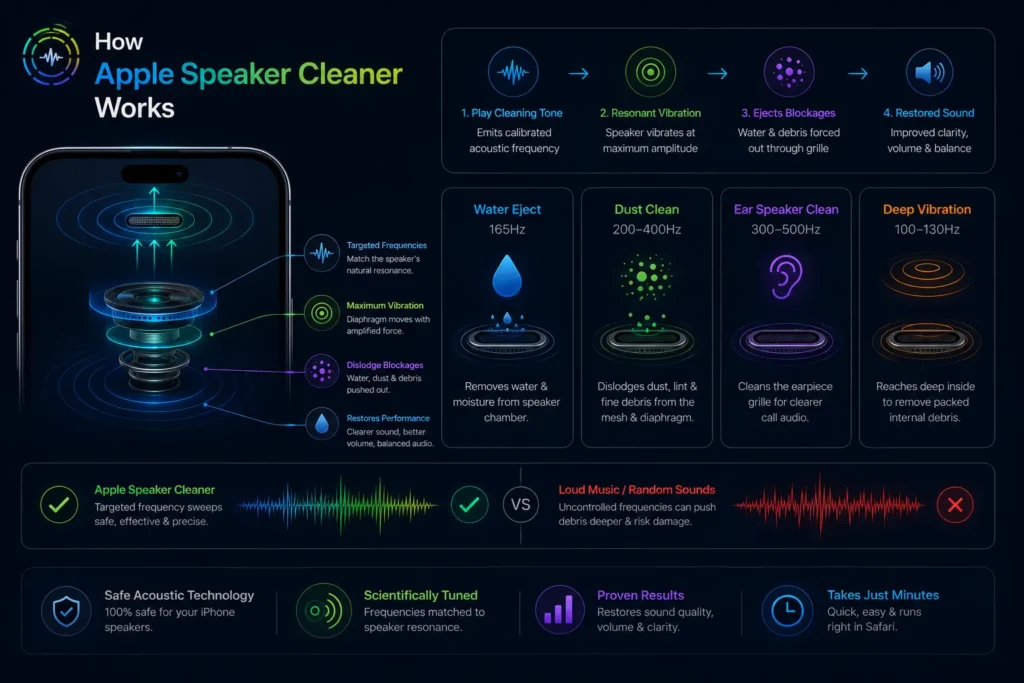
Step-by-Step Guide to Clean Your iPhone Speakers
Step 1 — Open the Apple Speaker Cleaner Tool
Open Safari on your iPhone and navigate to the tool page. Do not use Chrome on iOS for this — iOS Chrome routes audio differently than Safari and may reduce cleaning effectiveness. Safari on iOS uses the native Web Audio API with direct hardware speaker access.
Step 2 — Turn Your Volume All the Way Up
Use the physical volume buttons on the side of your iPhone to set volume to maximum before pressing play. Do not use Control Centre — physical button maximum volume is consistent across all iPhone models. Maximum volume creates the strongest acoustic pressure inside the speaker chamber. At 50 percent volume, vibration amplitude is insufficient to dislodge packed debris from the iPhone speaker mesh.
Step 3 — Select the Cleaning Mode
Choose the mode that matches your problem. Water Eject for muffled audio after rain, sweat, or liquid exposure. Dust Clean for gradual volume loss over weeks. Ear Speaker mode for muffled call audio through the earpiece. Deep Vibration for heavy packed debris that has not responded to standard cleaning. Smart Clean covers all blockage types in a single sweep if you are unsure.
Step 4 — Place the iPhone on a Flat Surface
For water ejection, place the iPhone on a flat surface with the bottom speaker grille facing the edge — this allows ejected water droplets to exit the grille and fall away from the device rather than back onto the surface. For dust cleaning, normal horizontal placement is sufficient. Remove the iPhone case completely before starting — cases absorb vibration and reduce cleaning effectiveness by up to 40 percent.
Step 5 — Run the Cleaning Sound
Press play and allow the full 60-second cycle to run without interruption. The frequency sweep covers multiple resonant zones of the speaker membrane and grille mesh. Watch the speaker grille during the first 20 seconds — visible water droplets exiting the grille or fine dust particles confirm the cleaning is working. Do not stop the cycle early.
Step 6 — Check and Repeat if Needed
After the cycle completes, play a short voice recording at medium volume to test audio clarity. Restored bass, clearer treble, and fuller voice reproduction confirm the blockage has been cleared. If audio improvement is partial, run a second full cycle immediately followed by Vibration Mode for a complete two-stage clean. For moisture problems, follow up with silica gel packets for 6 hours to absorb any residual internal moisture.
Pro Tips for Best Results
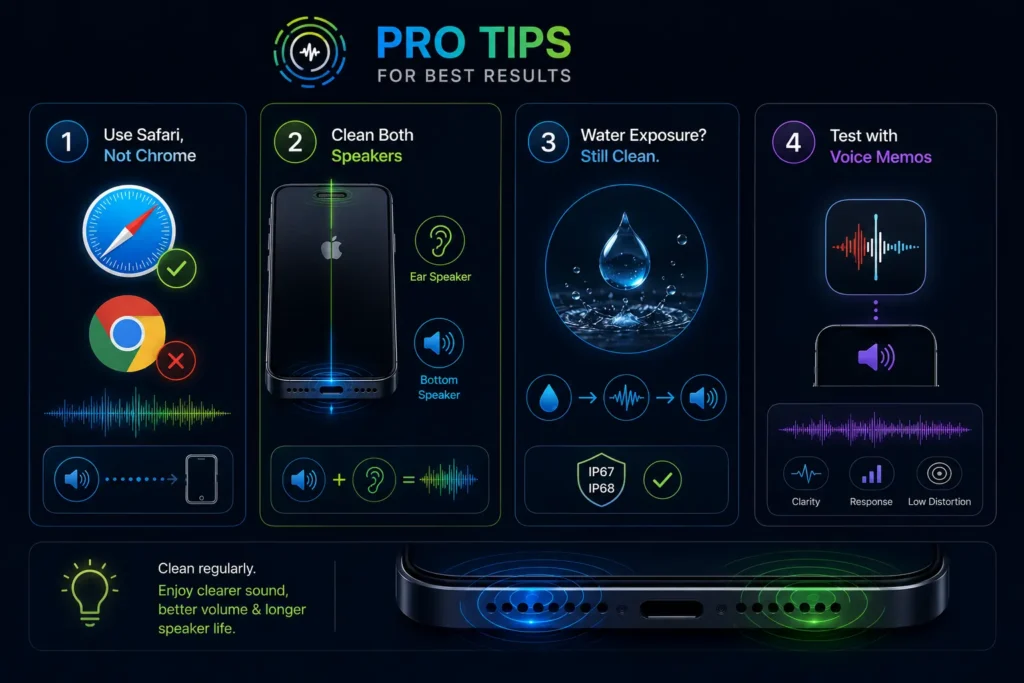
Use Safari, not Chrome. iOS Chrome adds audio processing layers that can reduce the acoustic pressure reaching the speaker hardware. Safari has direct Web Audio API access to iPhone speaker hardware.
Clean both speakers separately. The iPhone bottom speaker and earpiece speaker have different grille structures and different resonant frequencies. Run the standard dust or water mode for the bottom speaker, then switch to Ear Speaker mode for the earpiece. Both speakers affect overall audio quality — cleaning only one produces partial results.
For iPhone 7 and later (IP67/IP68 rated), do not assume the IP rating means water cannot affect speaker performance. The rating means water does not cause immediate internal damage. Moisture in the speaker chamber still muffles audio and still responds to acoustic ejection — run iPhone water cleaner mode after any water exposure regardless of IP rating.
After cleaning, test audio with Apple’s built-in Voice Memos app rather than music. Voice memos at medium volume reveal speaker clarity, frequency response, and distortion more clearly than music, which has too many frequency variables to isolate speaker quality changes.
Key Benefits of Using Apple Speaker Cleaner
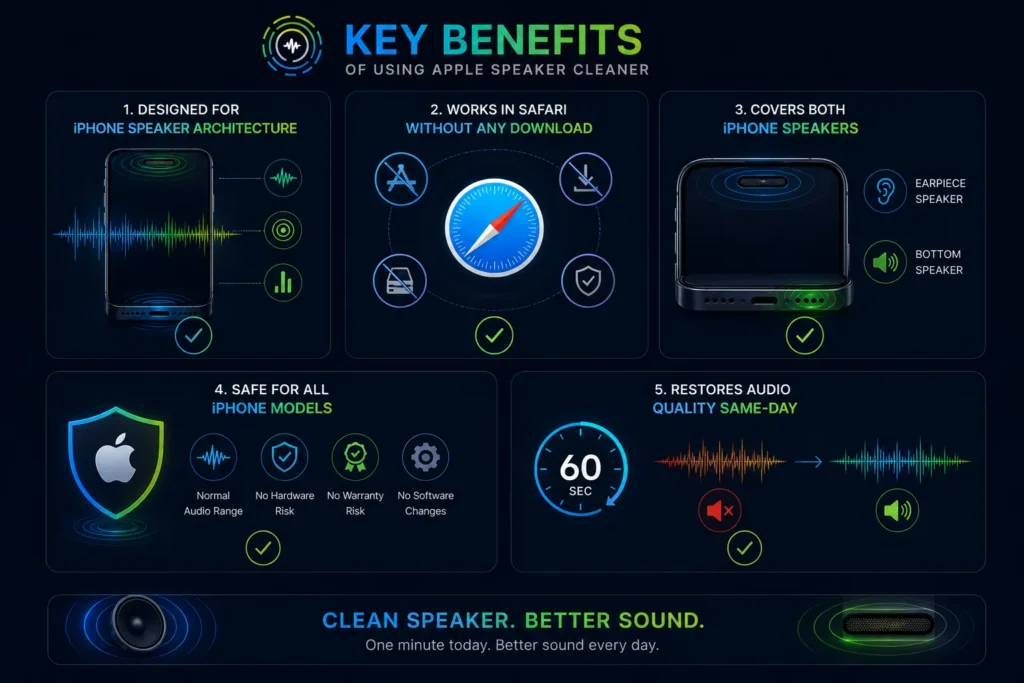
Designed for iPhone speaker architecture.
The frequency modes are tuned to iPhone speaker resonant characteristics — different from generic phone speaker cleaners that use one-size-fits-all frequencies.
Works in Safari without any download.
No App Store visit, no storage used, no permissions beyond standard audio output. Open the page, press play.
Covers both iPhone speakers.
Bottom speaker and earpiece speaker have dedicated cleaning modes with frequencies optimised for each grille structure.
Safe for all iPhone models
The cleaning tone operates within the normal audio output range of iPhone speakers — identical to standard music or call audio playback. No hardware risk, no warranty risk, no software modification.
Restores audio quality same-day.
Unlike drying methods that take 24–48 hours, acoustic ejection works in 60 seconds. iPhone water cleaner mode is the fastest available method for restoring audio after water exposure.
DIY vs. Professional Cleaning — Which One Is Right for You?
When DIY Cleaning Is Enough
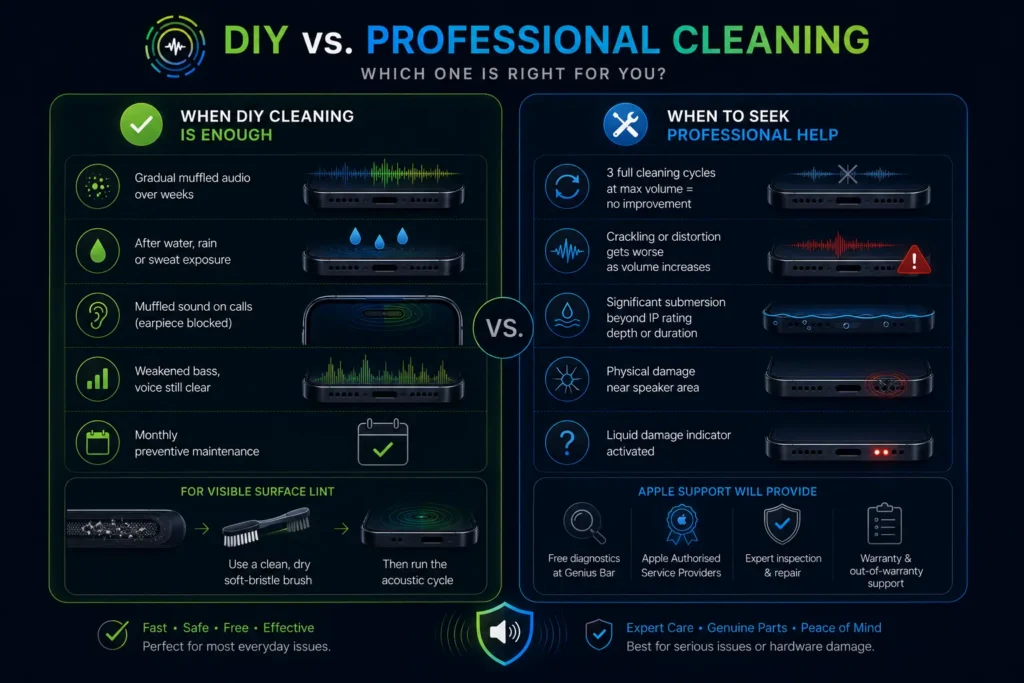
Use the Apple speaker cleaner tool when iPhone audio has gradually become muffled over weeks — this pattern is almost always progressive dust accumulation. Also use it immediately after any water, rain, or sweat exposure — acoustic ejection within the first hour of moisture contact produces the best results.
DIY cleaning also works well when call audio is clear on speakerphone but muffled during standard calls (confirming the earpiece specifically is blocked), when bass has weakened but voice is still clear, and as monthly preventive maintenance.
For visible surface lint on the bottom speaker grille, use a clean dry soft-bristle toothbrush with light strokes along the grille direction before running the acoustic cycle. Apple’s own support guidance recommends this method for visible grille debris. The brush removes surface material and the acoustic cycle clears internal blockage the brush cannot reach.
When to Seek Professional Help
Contact Apple Support or an Apple Authorised Service Provider when: three full acoustic cleaning cycles at maximum volume produce zero audio improvement; crackling or distortion worsens as volume increases — indicating a torn speaker diaphragm; the iPhone experienced significant submersion beyond IP rating depth or duration; physical damage is visible near the speaker grille area; or the device shows signs of liquid damage indicator activation. Apple retail stores offer free speaker diagnostics at the Genius Bar for all iPhone models under warranty and for out-of-warranty inspection.
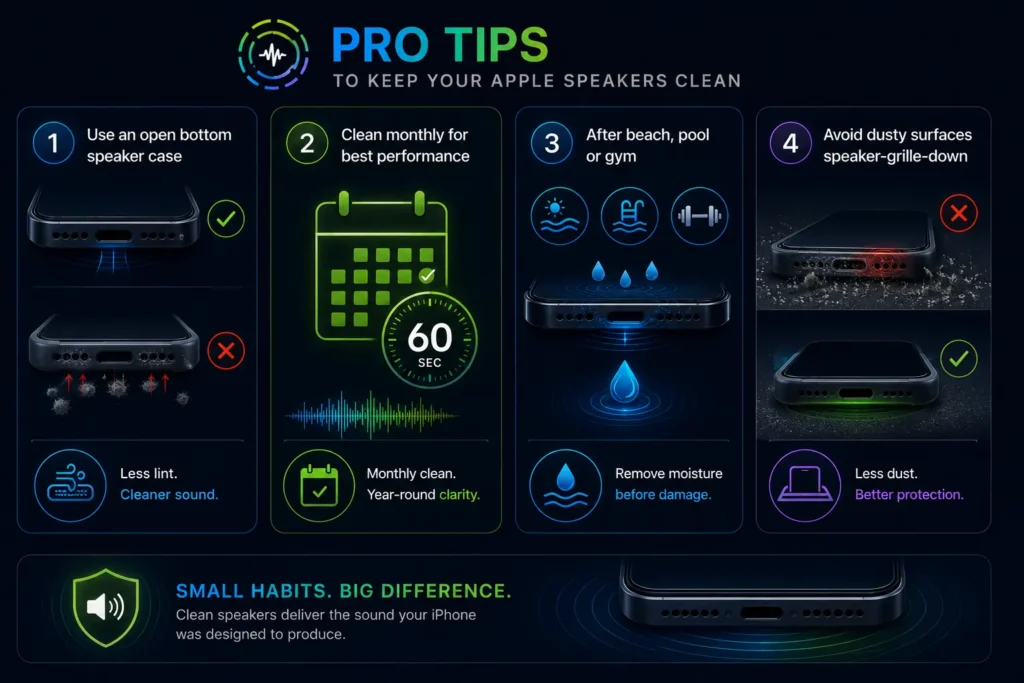
Pro Tips to Keep Your Apple Speakers Clean
Use a case with an open bottom speaker design — cases with sealed bottom edges channel lint directly into the speaker grille on every pocket insertion. An open-port case design reduces passive lint accumulation by 60–70 percent.
Run Apple speaker cleaner monthly as routine maintenance. The iPhone speaker grille accumulates debris continuously. Monthly 60-second sessions prevent the baseline from degrading — users who clean monthly consistently report clear, full-volume audio year over year.
After beach, pool, or gym sessions, run iPhone water cleaner mode the same day. Salt water from sweat and ocean water is electrically conductive and begins corroding internal contacts faster than freshwater. Acoustic ejection within two hours of saltwater contact removes moisture before mineral deposits form on the diaphragm surface.
Keep the iPhone away from dusty surfaces speaker-grille-down. Placing the iPhone face-up on a dusty desk continuously funnels ambient particles toward the bottom speaker grille. Face-down placement or using a case with a raised lip around the speaker area reduces passive accumulation during desk use.
Apple’s official support page confirms that iPhone speakers
can be affected by water and recommends immediate drying
steps after any liquid exposure.
To clean the iPhone earpiece separately from the
bottom speaker, the ear speaker cleaner uses 300–500Hz
tuned specifically for earpiece grille architecture.