Laptop Speaker Cleaner – Restore Clear Audio in 60 Seconds
Your laptop audio sounds thin, muffled, or distorted. Conference calls sound distant. Music has lost its bass. Videos sound like they are playing through a wall. In most cases this is not a hardware failure — it is dust and debris restricting your laptop speaker diaphragm. The laptop speaker cleaner tool uses targeted acoustic frequencies to vibrate that blockage loose and push it out through the speaker grille, restoring clear, full-range audio without any tools, disassembly, or repair costs.
Clean My Laptop Speaker Now — Free, 60 Seconds
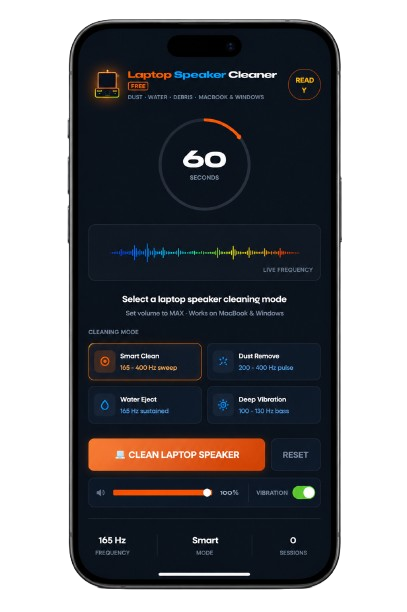
Laptop Speaker CleanerFREE
Dust · Water · Debris · MacBook & Windows
Laptop Speaker Cleaned ✓
Dust · debris · moisture cleared · Audio restored
Laptop Speaker Cleaner
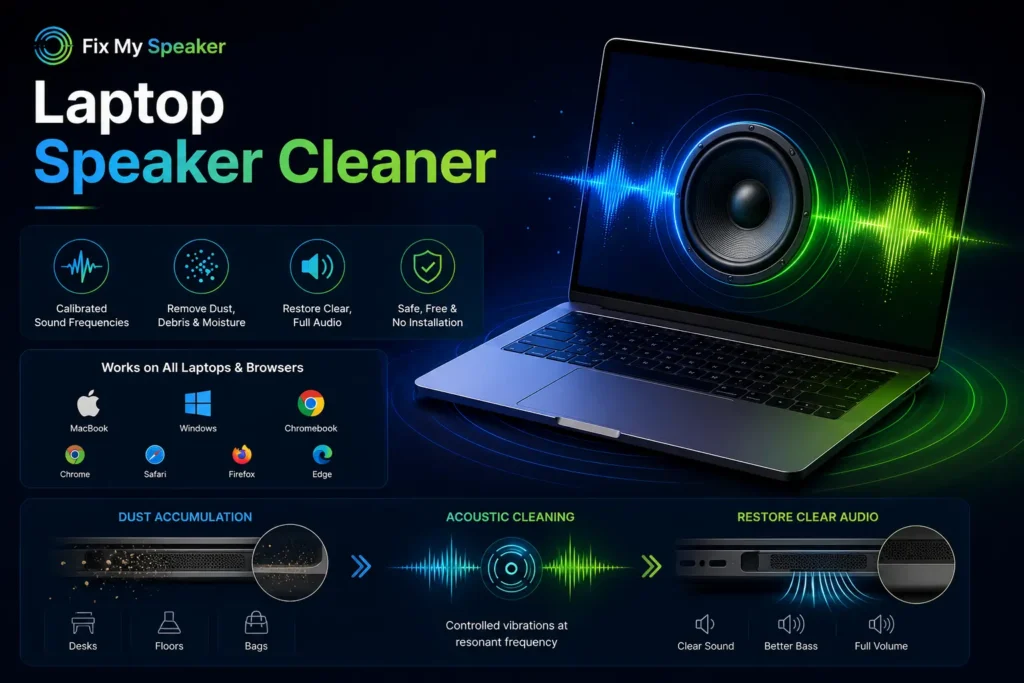
The laptop speaker cleaner is a free browser-based acoustic tool that plays calibrated sound frequencies through your laptop speakers to dislodge dust, debris, and moisture without any physical contact. It works on MacBook, Windows laptops, Chromebooks, and any device with browser-accessible audio output — Chrome, Safari, Firefox, Edge — with no installation required.
Laptop speakers accumulate dust faster than phone speakers because laptops sit on desks, floors, and bags where airborne particles settle continuously. The bottom-firing or side-firing speaker design on most laptops means the grille faces surfaces that generate the most ambient dust. The acoustic cleaning tool addresses this by creating controlled vibrations at the speaker’s resonant frequency — shaking loose what passive use cannot clear.
Why Do You Need to Clean Your Laptop Speaker?
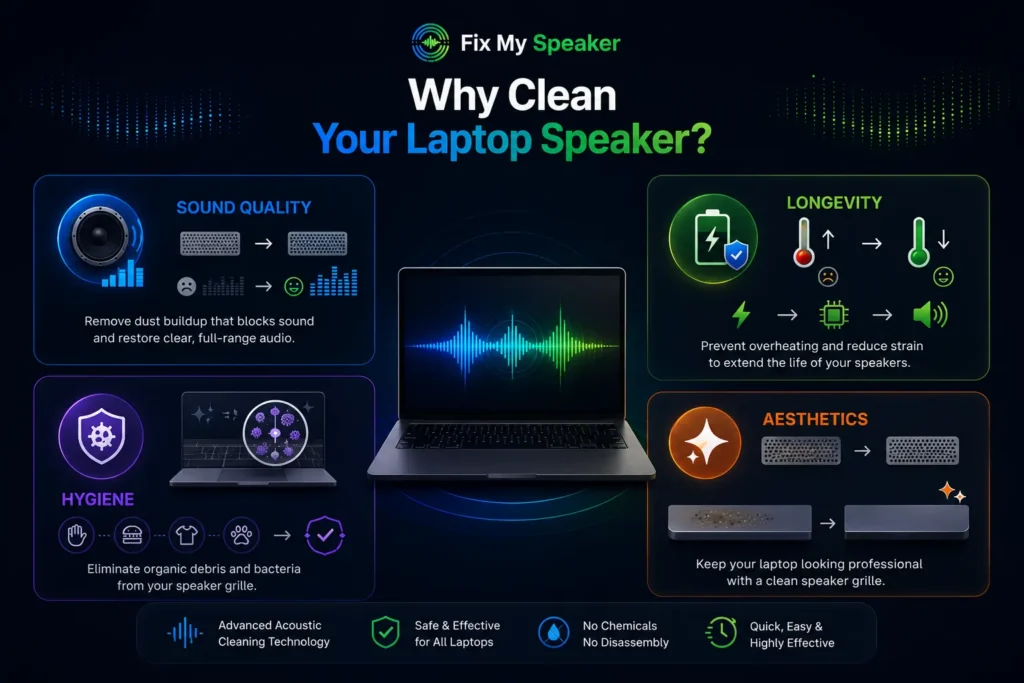
Sound Quality
Dust particles settle on the speaker diaphragm and restrict membrane movement. Each layer of buildup narrows the frequency response — bass disappears first, then midrange clarity drops. Audio that once sounded full and clear progressively becomes flat and thin. Most laptop users assume this is normal degradation over time. It is almost always dust accumulation that a single cleaning session can reverse.
Longevity
A blocked speaker diaphragm requires more electrical power to produce the same audio output level. That additional load increases heat output from the speaker voice coil and amplifier circuit. Over months, elevated operating temperature degrades the speaker components faster than normal use would. Regular acoustic cleaning with a laptop speaker cleaner keeps the diaphragm moving freely, reduces the electrical load, and extends the operating life of the speaker system.
Hygiene
Laptop speakers sit in environments that generate organic debris — skin cells, food particles, fabric fibres from bags and clothing. In humid conditions, this organic material becomes a surface for bacterial accumulation inside the speaker grille. Acoustic cleaning removes this buildup without chemicals, liquid, or physical contact with the grille mesh.
Aesthetics
A visibly dusty speaker grille looks neglected regardless of how new the laptop is. Acoustic cleaning combined with light surface brushing keeps the speaker grille clean, which contributes to the overall presentation of the device — relevant for professionals who use their laptop in meetings, presentations, and client environments.
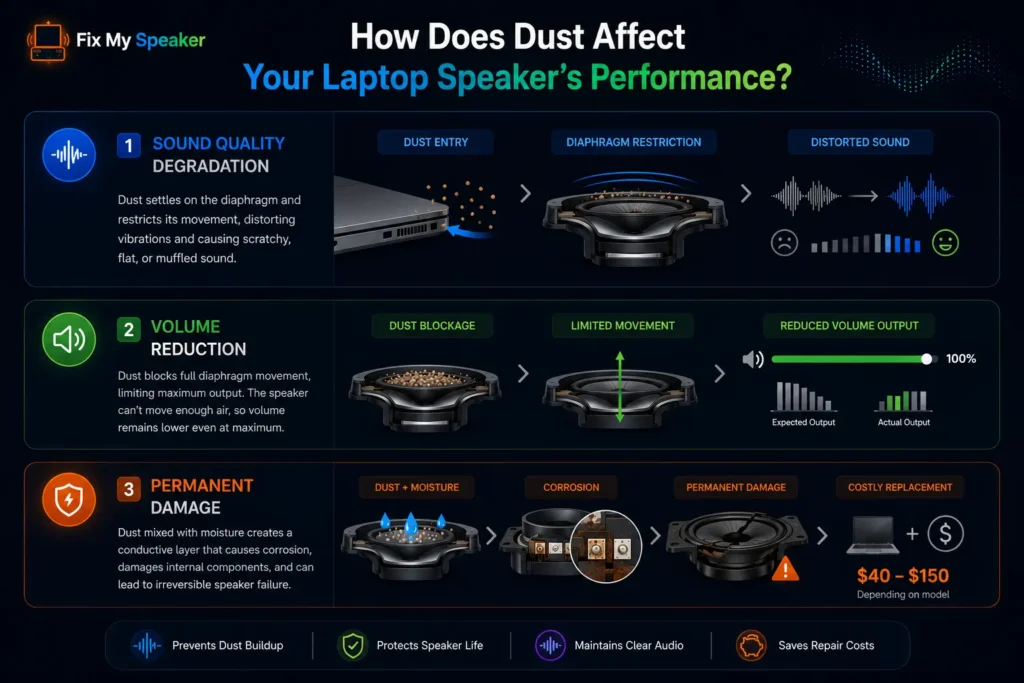
How Does Dust Affect Your Laptop Speaker’s Performance?
Sound Quality Degradation
The laptop speaker diaphragm is a thin membrane that creates sound by moving air in precise patterns corresponding to audio frequencies. Dust and debris that enter the speaker grille settle on this membrane and in the gap between the membrane and the speaker housing. Physical restriction on the diaphragm distorts these movement patterns, producing audio that sounds scratchy, flat, or muffled even at maximum volume. The distorted audio is a direct acoustic result of physical constraint on the diaphragm — not electronic failure.
Volume Reduction
A dust-restricted diaphragm cannot complete its full movement range on each vibration cycle. Maximum output is physically capped by the debris layer preventing full membrane excursion. Users increase the volume slider to maximum and find the actual output still falls short of expectations. This is not a software or driver issue — it is a mechanical blockage problem. The laptop speaker cleaner addresses this directly by removing the blockage rather than treating symptoms.
Permanent Damage
Dust mixed with moisture inside the speaker chamber forms a conductive paste that can bridge electrical contacts and accelerate corrosion on the voice coil and speaker terminals. If left unaddressed, this combination causes permanent speaker damage that cannot be reversed by cleaning. Laptop speaker replacement costs between $40 and $150 depending on the model and involves partial disassembly. Monthly acoustic cleaning prevents this accumulation from ever reaching the damage threshold.
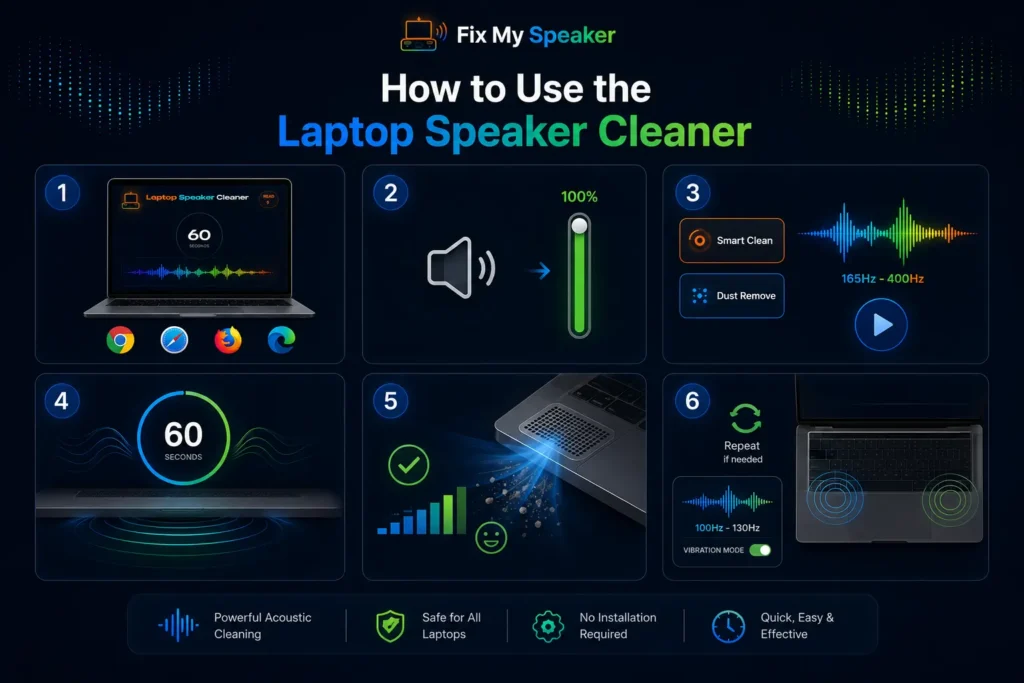
How to Use the Laptop Speaker Cleaner
Launch the Laptop Speaker Cleaner Tool. Open the tool in any browser on your laptop — Chrome, Safari, Firefox, or Edge all work without any plugin or extension. The tool runs entirely in the browser using the Web Audio API.
Set Volume to Maximum Level. Before pressing play, raise your laptop volume to 100 percent. Maximum volume creates the strongest acoustic pressure and vibration amplitude inside the speaker chamber. At lower volumes, the vibration is insufficient to dislodge packed dust particles from the grille mesh.
Play the High-Frequency Cleaning Sound. Select Smart Clean mode for general maintenance or Dust Remove mode for heavy accumulation. The frequency sweep runs from 165Hz to 400Hz, covering the full resonant range of most laptop speaker membranes. Press play.
Allow Continuous Sound Playback. Let the full 60-second cycle run without interrupting it. The sweep covers multiple resonant zones of the speaker membrane. Stopping early cuts the cleaning cycle short before the deeper chamber pass is complete.
Observe Improved Sound Output. During playback, fine dust particles exiting the speaker grille confirm the cleaning is working. After the cycle completes, test audio with a voice recording or music track. Restored bass, clearer treble, and fuller midrange confirm blockage has been removed.
Repeat if Necessary for Deep Cleaning. For heavy dust accumulation or audio that only partially improves after the first cycle, run a second full cycle immediately. Switch to Vibration Mode after the sound wave pass — low-frequency pulses at 100–130Hz create mechanical force that dislodges debris the initial sweep loosened but did not fully eject.
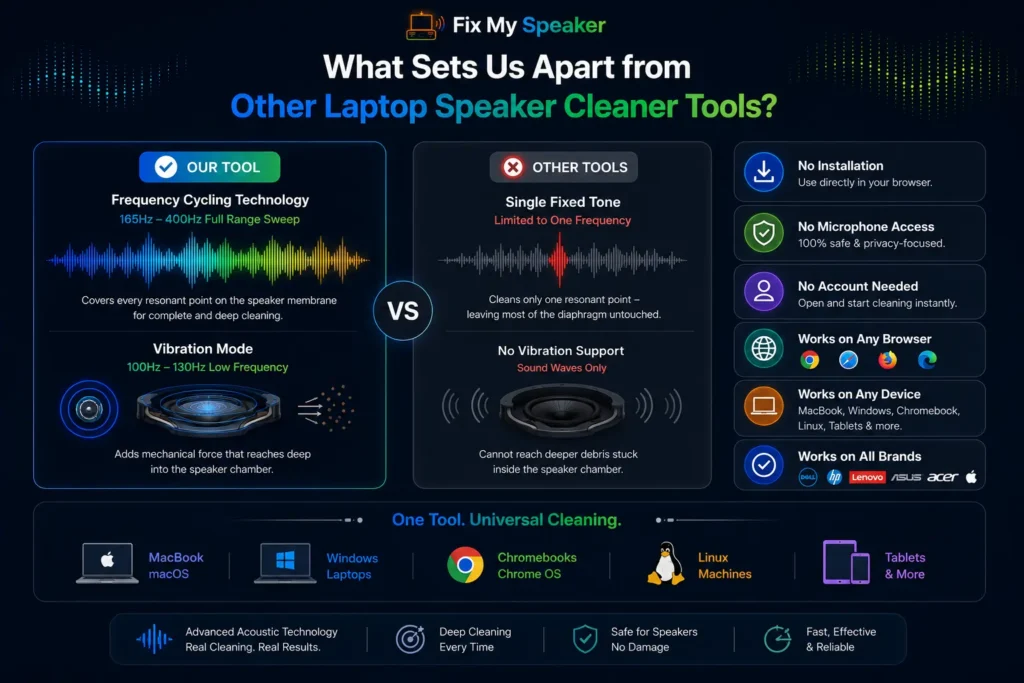
What Sets Us Apart from Other Laptop Speaker Cleaner Tools?
Most laptop speaker cleaner apps use a single fixed tone. A fixed tone reaches only one resonant point on the speaker membrane — leaving the majority of the diaphragm surface and grille mesh unaffected. The result is partial cleaning at best.
This tool uses frequency cycling — a sweep across the full 165Hz–400Hz cleaning range. Every zone of the speaker membrane receives acoustic pressure. The Vibration Mode adds a separate low-frequency pass that creates mechanical force reaching deeper into the speaker chamber than sound waves alone.
No installation is required. No microphone access is requested. No account is needed. The tool runs in any browser on any operating system — MacBook on macOS, Windows laptops, Chromebooks, Linux machines, and tablets. The same acoustic cleaning physics applies regardless of brand, whether that is a Dell, HP, Lenovo, Asus, Acer, or Apple MacBook.
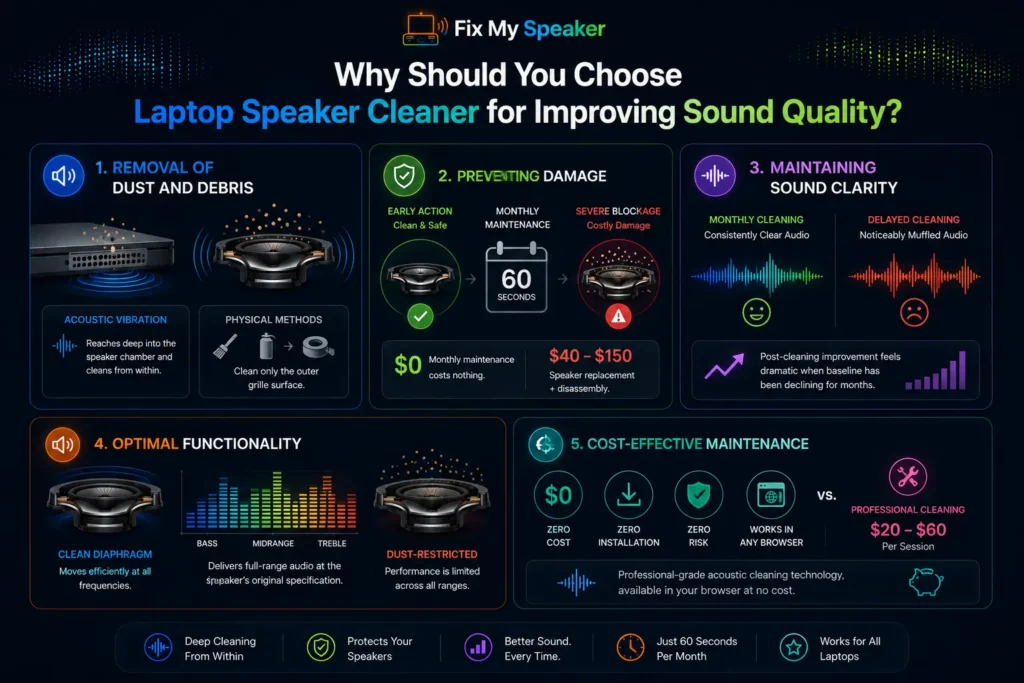
Why Should You Choose Laptop Speaker Cleaner for Improving Sound Quality?
Removal of Dust and Debris
Acoustic vibration reaches past the speaker grille mesh and acts directly on the diaphragm surface and internal debris. Physical cleaning methods — brushes, compressed air, tape — only address the outer grille surface. The laptop speaker cleaner reaches the full depth of the speaker chamber without any contact or risk of mesh damage.
Preventing Damage
Acting before blockage becomes severe prevents the dust-moisture combination that causes irreversible corrosion and voice coil damage. Monthly acoustic maintenance costs nothing and takes 60 seconds. Speaker replacement costs $40–$150 and requires partial laptop disassembly on most models.
Maintaining Sound Clarity
Regular cleaning maintains baseline audio quality rather than allowing gradual degradation to go unnoticed. Users who clean monthly describe audio quality as consistently clear. Users who wait until audio is noticeably muffled describe the post-cleaning improvement as dramatic — because their baseline had been declining for months.
Optimal Functionality
A clean speaker diaphragm moves efficiently at all frequency ranges. Bass response, voice clarity, and high-frequency detail all perform at the speaker’s original design specification rather than at the degraded output of a dust-restricted membrane.
Cost-Effective Maintenance
Zero cost. Zero installation. Zero risk. The laptop speaker cleaner online tool delivers the same acoustic cleaning principle used in professional ultrasonic cleaning equipment, applied directly through the browser at no cost. Professional speaker cleaning at a repair centre costs $20–$60 per session. This tool replaces that cost entirely for blockage-related audio problems.
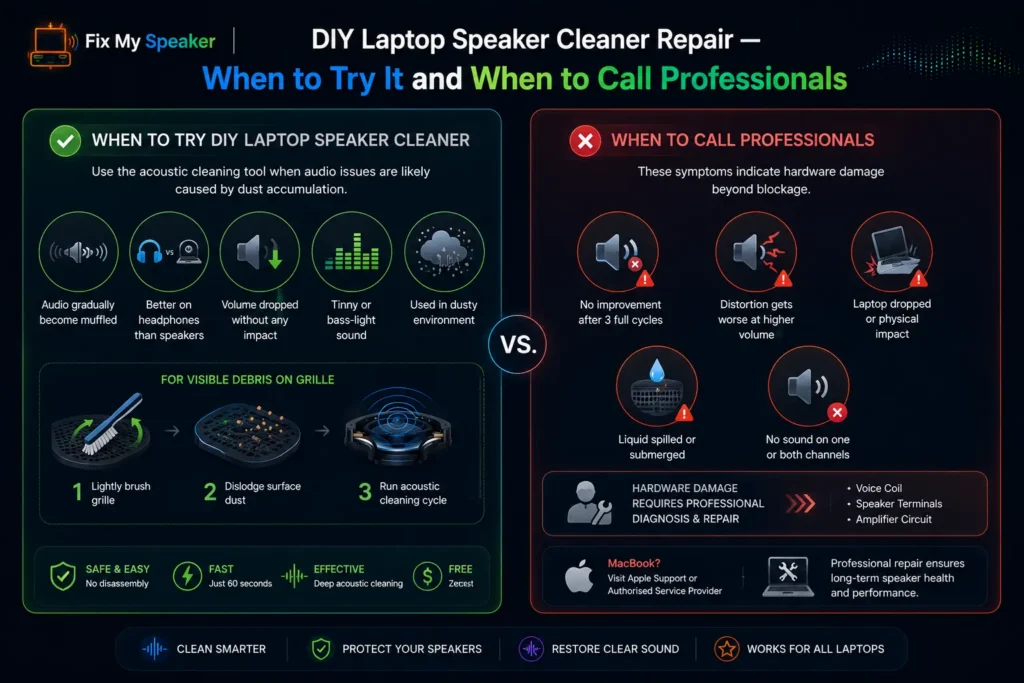
DIY Laptop Speaker Cleaner Repair — When to Try It and When to Call Professionals
When to Try DIY Laptop Speaker Cleaner
Use the acoustic cleaning tool when laptop audio has gradually become muffled over weeks or months — this pattern almost always indicates progressive dust accumulation.
Also try it when: audio sounds clearer through headphones than through the laptop speaker (confirming the speaker is blocked rather than a driver issue); volume dropped without any physical impact event; audio sounds tinny or bass-light despite maximum volume; the laptop was used in a dusty environment such as a workshop, outdoor setting, or sandy location.
For visible debris on the speaker grille, use a clean dry soft-bristle toothbrush with light strokes along the grille direction before running the acoustic cycle. This dislodges surface material and the sound cycle clears what the brush cannot reach internally.
When to Call Professionals
Seek professional repair when: three full acoustic cleaning cycles at maximum volume produce zero audio improvement; crackling or distortion worsens as volume increases — indicating a torn or warped diaphragm; the laptop was dropped or received physical impact near the speaker area; the laptop was submerged or had liquid spilled directly into the speaker grille; or speaker output is completely absent on one or both channels.
These symptoms indicate hardware damage beyond blockage — a repair technician should inspect the voice coil, speaker terminals, and amplifier circuit. On MacBook models, Apple Support and authorised service providers offer speaker diagnostics.
If liquid was spilled near the laptop speaker, run the
water eject tool first before the dust cleaning cycle
to remove moisture before it evaporates.